Opus 5.5 Video AI Anime Video Generator for original character moments
An anime scene can begin with a glance, a small discovery, or a quiet change in the weather. The H3Max Opus 5.5 Video AI Anime Video Generator uses MiniMax H3 Max Turbo to explore original scenes from text or an opening illustration. Give the Opus 5.5 Video AI Anime Video Generator a character moment rather than asking a short clip to carry an entire episode.
Video workspace
Crayon Picture Book — The Moon Can't Sleep
1/94View prompt
Create a 20-second original animation inspired by Crayon Picture Book. The moon can't sleep, so a little girl climbs onto the roof to sing it a lullaby. A picture-book page drawn live in wax crayon on toothy paper, with a watercolour wash that reveals what the crayon was hiding. References (grammar only): Raymond Briggs' *The Snowman* (1982) (hand-textured frames that breathe, wordless tenderness, a lyrical passage carried by one tune, still backgrounds with living figures). Copy none of its characters, song or imagery, and never name it in the film. Use an original story, clear compositions and deliberate transitions. Silent animation.
Introduction
Opus 5.5 Video Give the Opus 5.5 Video AI Anime Video Generator a specific moment
A focused Opus 5.5 Video AI Anime Video Generator brief connects character, action, and setting before adding spectacle or elaborate background detail.
Opus 5.5 Video Begin with a small discovery
An adult rooftop botanist notices a glowing seedling and leans closer. That gives the Opus 5.5 Video AI Anime Video Generator a visible event and a readable reaction. The character’s curiosity can carry the scene without dialogue, a chase, or several sudden location changes.
Opus 5.5 Video Describe original visual traits
Give the character a practical jacket, a distinctive hairstyle, and one meaningful accessory. Ask the Opus 5.5 Video AI Anime Video Generator for clean linework and restrained shading. Describe those qualities directly rather than relying on a recognizable franchise character to supply the entire identity.
Opus 5.5 Video Choose the appropriate starting point
Text mode invents the scene from your brief; image mode starts from one uploaded illustration with an optional ending image. The Opus 5.5 Video AI Anime Video Generator uses the same Turbo model for these tasks, not an undisclosed anime-only engine or an automatic episode builder.
How to use
Opus 5.5 Video How to use the Opus 5.5 Video AI Anime Video Generator
- PromptSTEP 1
Opus 5.5 Video Choose your opening
Choose MiniMax H3 Max Turbo in the Opus 5.5 Video AI Anime Video Generator, then start from text or one opening illustration.
- ModelMiniMax H3 Max Turbo480P16:95sPromptSTEP 2
Opus 5.5 Video Direct the performance
Give the Opus 5.5 Video AI Anime Video Generator a small character action, clear facial direction, restrained camera movement, and relevant environmental sound.
- First frameLast frame
 0.0s
0.0s 2.6s
2.6s 4.7sSTEP 3
Opus 5.5 Video Create the first draft
Start the Opus 5.5 Video AI Anime Video Generator at five seconds and 480P, review framing and displayed credits, then generate the scene.
- Five-second original anime-style scene. An adult botanist in a navy field jacket notices one glowing seedling on a rooftop greenhouse bench, leans slightly closer, then smiles softly. Steady medium view, clear hands, restrained hair movement, clean linework and simple cel-like shadows. Warm sunrise above a distant harbor. Light wind and leaves rustling, no dialogue or captions.DownloadSTEP 4
Opus 5.5 Video Check the full sequence
Inspect Opus 5.5 Video AI Anime Video Generator expressions, hands, costume details, and audio throughout the clip before refining or downloading your chosen version.
Features
Opus 5.5 Video Build readable Opus 5.5 Video AI Anime Video Generator characters
Your Opus 5.5 Video AI Anime Video Generator subject needs an understandable face and silhouette while moving, not just detailed styling in a still frame.
Opus 5.5 Video Keep facial direction clear
Describe where the character looks and how far the head turns. A slight glance toward a light is easier to inspect than a rapid spin. Give the Opus 5.5 Video AI Anime Video Generator a readable facial angle before adding elaborate hair movement or strong shadows.
- Keep the eyes visible during the main expressive beat.
- Ask the Opus 5.5 Video AI Anime Video Generator for restrained movement around the face.
Opus 5.5 Video Limit costume distractions
Choose a few defining elements, such as a navy jacket and coral scarf, rather than many straps and ornaments. This gives Opus 5.5 Video AI Anime Video Generator review a clear checklist. Inspect those elements during the gesture to see whether their shape or placement changes unexpectedly.
Opus 5.5 Video Specify a consistent drawing language
Ask for fine dark outlines, simple shadow shapes, and a softly painted environment. Give the Opus 5.5 Video AI Anime Video Generator a coherent treatment rather than mixing photographic skin with flat clothing and unrelated rendering styles. Watch whether the linework remains readable during motion.

Opus 5.5 Video Shape Opus 5.5 Video AI Anime Video Generator expression and timing
An effective Opus 5.5 Video AI Anime Video Generator scene gives the character time to notice, respond, and settle within one short action.
Opus 5.5 Video Use gaze before a larger gesture
A character can look toward a sound before turning slightly to investigate. Explain that order to the Opus 5.5 Video AI Anime Video Generator. It gives the response a reason and makes the movement feel connected to something in the scene instead of arriving without context.
- Choose one cause for the character’s change in expression.
- Give the Opus 5.5 Video AI Anime Video Generator a pause after the important reaction.
Opus 5.5 Video Make the action physically readable
For a hand reaching toward a seedling, keep the plant and hand clearly separated at the start. Ask the Opus 5.5 Video AI Anime Video Generator for a small movement with a visible destination. Review fingers, sleeves, and contact rather than accepting a vague blur as completed action.
Opus 5.5 Video Let secondary motion follow
Hair tips or a scarf can move after the head turns. Describe that supporting movement without making it the central event. The Opus 5.5 Video AI Anime Video Generator should have a hierarchy of motion so flowing fabric and floating particles do not hide the character’s performance.
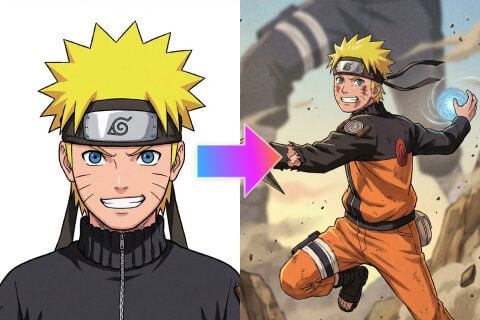
Opus 5.5 Video Give Opus 5.5 Video AI Anime Video Generator scenery a supporting role
Use the Opus 5.5 Video AI Anime Video Generator environment to establish place and depth while keeping the expressive action easy to follow.
Opus 5.5 Video Arrange three readable layers
A greenhouse railing in front, the character beside a plant, and a distant harbor create a clear spatial arrangement. Describe those relationships to the Opus 5.5 Video AI Anime Video Generator. Not every layer needs equal detail, motion, or brightness to make the scene feel expansive.
- Keep background structures quieter than the character’s face and hands.
- Check Opus 5.5 Video AI Anime Video Generator perspective when the camera begins to move.
Opus 5.5 Video Choose weather with visible effects
A light sea breeze can move leaves and a loose sleeve; morning haze can soften distant buildings. Give the Opus 5.5 Video AI Anime Video Generator those specific effects. Asking for several weather conditions together can make the atmosphere harder to read and the light inconsistent.
Opus 5.5 Video Protect the character’s route
If the character takes one step, describe the clear area where the foot lands. The Opus 5.5 Video AI Anime Video Generator should receive a coherent space for that action. Watch rails, planters, and foreground foliage so they do not intersect the body or conceal important movement.
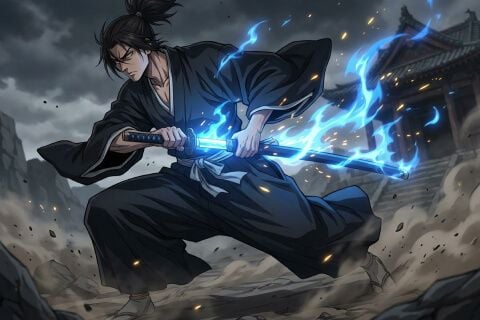
Opus 5.5 Video Frame Opus 5.5 Video AI Anime Video Generator scenes for their destination
Composition and audio should serve the same moment. Give the Opus 5.5 Video AI Anime Video Generator a viewing context before choosing camera movement.
Opus 5.5 Video Choose wide or vertical staging
Text mode starts at 16:9, and 9:16 can suit a vertical character scene. In image mode, the source controls proportions. Plan Opus 5.5 Video AI Anime Video Generator framing around the gesture, leaving enough room for the face, hands, and relevant environment to remain visible.
Opus 5.5 Video Keep the camera purposeful
Try a steady medium view for a reaction or a gentle push toward a discovery. Tell the Opus 5.5 Video AI Anime Video Generator where the camera begins and how it moves. A short emotional beat rarely needs a simultaneous orbit, zoom, and dramatic angle change.
Opus 5.5 Video Write an atmospheric audio cue
Turbo creates native audio. Ask the Opus 5.5 Video AI Anime Video Generator for wind through leaves, a soft footstep, or a distant harbor sound. Listen to the result for fit and distraction. Exact dialogue and mouth timing should not be assumed from a written instruction.

Opus 5.5 Video Review Opus 5.5 Video AI Anime Video Generator continuity before expanding
Watch the whole Opus 5.5 Video AI Anime Video Generator result before selecting it. A beautiful opening does not reveal every change during the performance.
Opus 5.5 Video Inspect the acting interval
Check the face, hands, clothing, and featured object during the largest movement. The Opus 5.5 Video AI Anime Video Generator may alter drawing details or proportions as the shot develops. Compare the result with the intended design, especially after an obstruction or change in camera angle.
Opus 5.5 Video Use an ending frame selectively
An optional ending illustration can show a reachable final pose. Explain the movement between it and the opening. The Opus 5.5 Video AI Anime Video Generator still needs review through the middle of the clip; matching endpoints alone would not establish a convincing performance or stable character.
Opus 5.5 Video Refine the successful direction
Start at five seconds and 480P; Turbo supports five to fifteen seconds and 480P, 768P, or 1080P. Check displayed credits before each Opus 5.5 Video AI Anime Video Generator request. Keep the useful character brief and change one weak instruction rather than replacing the entire scene.

Example prompts
Opus 5.5 Video Rooftop botanist at sunrise
Five-second original anime-style scene. An adult botanist in a navy field jacket notices one glowing seedling on a rooftop greenhouse bench, leans slightly closer, then smiles softly. Steady medium view, clear hands, restrained hair movement, clean linework and simple cel-like shadows. Warm sunrise above a distant harbor. Light wind and leaves rustling, no dialogue or captions.
Opus 5.5 Video Image mode: a quiet station reaction
Use the uploaded original character illustration as the opening frame. Over five seconds, the adult traveler hears a distant arrival sound, glances toward the platform, and gently tightens one hand around a canvas bag strap. Keep the camera steady and the gesture small. Soft evening light, subtle coat movement, quiet station ambience. No new characters, dialogue, captions, or rapid cuts.
User reviews
H3Max video creator feedback.
H3Max creator reviews

I made a full character PV for my game with MiniMax H3 in one afternoon. The menu UI stayed readable in every frame and the character never went off-model. That used to cost me a contractor and three weeks.

We tested every AI video generator on the market for stylized work. H3 is the only one that held our anime style across cuts. We now use it for pitch reels and animatics on every project.

I uploaded four product photos and got a listing video with music and a voiceover the same day. My click-through rate on the new listings is up 38%. H3 even got the label text on my packaging right.

I ship five vertical videos a week for three brands. MiniMax H3 gets me from brief to draft in under an hour, with sound already synced. My old workflow needed a videographer and two review rounds.

The editing side is what sold me. A client wanted the background of an interview changed — I typed one sentence into MiniMax H3 and the lighting on the subject matched the new scene automatically.

I previsualized my entire short film in MiniMax H3 before we shot a single frame. Rack focus, match cuts, even the title cards — it understands director language, not just keywords.
Opus 5.5 Video Pricing and Credit Plans
Cancel anytime
Lite
50% off0.025 / credit
Billed $ yearly179· Save $179.8
Video Models


Image Models



- Includes MiniMax H3 and all premium models
- Up to 1 batch generation task
- Standard generation speed
- Standard generation success rate
- Standard customer support
- Commercial Use License
Standard
50% off0.017 / credit
Billed $ yearly299· Save $299.8
Video Models
Image Models
- Includes MiniMax H3 and all premium models
- Up to 4 batch generation tasks
- Priority processing speed
- High generation success rate
- Priority customer support
- Commercial Use License
Pro
50% off0.014 / credit
Billed $ yearly599· Save $599.8
Video Models
Image Models
- Includes MiniMax H3 and all premium models
- Up to 10 batch generation tasks
- Fastest generation speed
- High generation success rate
- Dedicated account manager
- Commercial Use License
Max
50% off0.012 / credit
Billed $ yearly1,199· Save $1,199.8
Video Models
Image Models
- Includes MiniMax H3 and all premium models
- Up to 10 batch generation tasks
- Fastest generation speed
- High generation success rate
- Dedicated account manager
- Commercial Use License
Pay safely and securely with























FAQ
Frequently asked questions
Do I need artwork for the Opus 5.5 Video AI Anime Video Generator?
No. You can begin in text mode with an original character and scene description. Use image mode when you already have an illustration that should establish the opening composition, optionally adding a compatible ending image.
Can the Opus 5.5 Video AI Anime Video Generator make vertical scenes?
Yes. Choose 9:16 for a vertical text-generated scene, or prepare a vertical opening illustration for image mode. Stage the character and action inside that composition rather than assuming a wide scene can be cropped without losing important details.
Will the Opus 5.5 Video AI Anime Video Generator keep a character identical?
No exact continuity is guaranteed. Keep a clear design brief and use an approved opening illustration when appropriate. Compare facial features, costume shapes, and accessories throughout each clip before grouping separate results into one character sequence.
How should I describe the visual style?
Give the Opus 5.5 Video AI Anime Video Generator concrete qualities: expressive linework, restrained cel-like shadows, muted clothing colors, and atmospheric painted scenery. A focused description helps you assess the result without relying on a named franchise or an assumed built-in style preset.
Can I make a complete episode in one request?
Treat the Opus 5.5 Video AI Anime Video Generator as a short-shot workflow within the supported five-to-fifteen-second range. Plan separate moments with clear actions and endings, then assemble selected clips elsewhere. One prompt is not a complete episode production system.
CTA
Opus 5.5 Video Direct a moment with the Opus 5.5 Video AI Anime Video Generator
Choose an original character, a readable gesture, and a setting that supports the emotion. Review your configuration and displayed credits, then create a short scene to watch and refine.
Create an original anime scene