Opus 5.5 Video Wan 2.5 for Short Scenes with Picture and Sound
Make a small scene feel complete through a visible action and an audible response. Opus 5.5 Video Wan 2.5 on H3 Max combines text or single-image video generation with native audio, optional supplied sound, and a compact choice of durations for focused creative work.
Video workspace
Crayon Picture Book — The Moon Can't Sleep
1/94View prompt
Create a 20-second original animation inspired by Crayon Picture Book. The moon can't sleep, so a little girl climbs onto the roof to sing it a lullaby. A picture-book page drawn live in wax crayon on toothy paper, with a watercolour wash that reveals what the crayon was hiding. References (grammar only): Raymond Briggs' *The Snowman* (1982) (hand-textured frames that breathe, wordless tenderness, a lyrical passage carried by one tune, still backgrounds with living figures). Copy none of its characters, song or imagery, and never name it in the film. Use an original story, clear compositions and deliberate transitions. Silent animation.
Introduction
Opus 5.5 Video What Is Opus 5.5 Video Wan 2.5?
Opus 5.5 Video Wan 2.5 is an Alibaba video generation model with native audio. On fal, its Preview model family supports both written scene descriptions and single-image animation.
Opus 5.5 Video Generate a scene that can also be heard
Native audio lets Opus 5.5 Video Wan 2.5 generate sound alongside the picture rather than treating every result as a silent visual. A brief can describe an action and the sound that belongs to it, such as paper unfolding or a bell ringing. The model also accepts an optional supplied audio file, which is a separate choice from asking it to invent the soundtrack.
Opus 5.5 Video The Opus 5.5 Video Wan 2.5 choices available on H3 Max
The workspace provides text and image modes, 480p, 720p, or 1080p output, and five-second or ten-second clips. Image mode uses one opening picture. Opus 5.5 Video Wan 2.5 also exposes a seed and optional audio input here. Set those choices around the creative task, then review the displayed credits before generating a new candidate.
How to use
Opus 5.5 Video How to Create a Opus 5.5 Video Wan 2.5 Scene
- PromptSTEP 1
Opus 5.5 Video Set the visual starting point
Select Opus 5.5 Video Wan 2.5 in H3 Max and choose text or image mode. Prepare one picture for image generation, or describe the setting and subject from scratch.
- ModelWan 2.51080p16:95sPromptSTEP 2
Opus 5.5 Video Plan the sound and action
Give Opus 5.5 Video Wan 2.5 a visible event and a concise sound direction. Add optional audio when using a prepared soundtrack, rather than treating the upload as a replacement for motion instructions.
- First frameLast frame
 0.0s
0.0s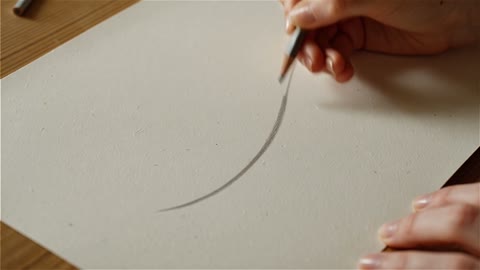 2.5s
2.5s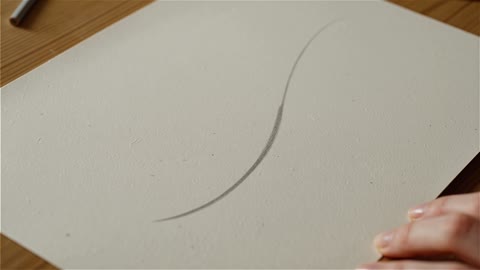 4.5sSTEP 3
Opus 5.5 Video Choose length, size, and seed
Set Opus 5.5 Video Wan 2.5 to five or ten seconds and select 480p, 720p, or 1080p. Set a seed when useful, then check the workspace credits before submitting.
- Create a five-second close shot of a hand drawing one curved line on thick paper with a graphite pencil. Keep the desk and viewpoint still. Soft daylight, visible paper texture, gentle pencil scratching with quiet room ambience. The pencil lifts at the end. No speech, music, extra hands, cuts, or written labels.DownloadSTEP 4
Opus 5.5 Video Check the complete audiovisual result
Review the Opus 5.5 Video Wan 2.5 picture and soundtrack separately, then together. Compare the clip with the intended event and revise the smallest visual or audio problem that matters.
Features
Opus 5.5 Video Connect Opus 5.5 Video Wan 2.5 Sound to a Visible Cause
Sound becomes more purposeful when it belongs to the action. Give Opus 5.5 Video Wan 2.5 an audible event that supports the scene instead of requesting an unrelated wall of music.
Opus 5.5 Video Describe one sound that the picture explains
For a close view of a pencil crossing paper, describe the movement and a light scratching sound. Keep competing activity out of the background. A Opus 5.5 Video Wan 2.5 request is easier to assess when the viewer can connect what they hear with what they see. Specify whether the room should feel quiet, busy, enclosed, or open without inventing several simultaneous sound sources.
Opus 5.5 Video Keep speech brief and attributable
When dialogue matters, identify the speaker and provide the exact short line. Leave enough time for the action and the words instead of treating a five-second clip as a full presentation. Listen to the Opus 5.5 Video Wan 2.5 result independently of the image. Check the wording, clarity, and timing, and do not assume a plausible voice means the intended line was delivered correctly.
Opus 5.5 Video Bring a Prepared Soundtrack to Opus 5.5 Video Wan 2.5
An existing piece of audio can establish the scene’s tone. The optional audio input in Opus 5.5 Video Wan 2.5 provides a different starting point from prompt-led sound generation.
Opus 5.5 Video Prepare the soundtrack segment for Opus 5.5 Video Wan 2.5
Use audio you are permitted to use and prepare its opening for the selected clip length. The documented Opus 5.5 Video Wan 2.5 audio handling keeps the beginning of a longer file, while a shorter file can leave the remainder silent. Do not rely on an automatic musical ending. Listen to the chosen segment before uploading so the request starts with suitable sound.
Opus 5.5 Video Do not confuse a soundtrack with motion capture
A supplied track does not establish a sequence of camera keyframes or prove that every visible gesture will match a beat. Describe the intended action separately in the Opus 5.5 Video Wan 2.5 prompt. Judge the picture and the sound together after generation. When timing is essential, keep the movement simple enough that a mismatch can be recognized and corrected in another attempt.
Opus 5.5 Video Animate a Single Starting Picture with Opus 5.5 Video Wan 2.5
Use an existing image when its arrangement already expresses the idea. Opus 5.5 Video Wan 2.5 can develop movement from that first frame while the prompt supplies the action and sound direction.
Opus 5.5 Video Keep the identity-bearing details visible
Choose a source with a clear subject, readable edges, and enough space for the requested motion. A shallow camera move around a handmade object may be more appropriate than a large turn that reveals unseen surfaces. Give Opus 5.5 Video Wan 2.5 a specific preservation brief, such as keeping the handle shape and surface color, then check those details throughout the generated clip.
Opus 5.5 Video Request an ending that fits the original picture
There is one image input in this workflow, so explain the desired finish in words rather than planning around a second uploaded frame. Ask Opus 5.5 Video Wan 2.5 for a movement that resolves naturally: the page settles, the hand withdraws, or the camera comes to rest. Keep the destination connected to the initial scene instead of introducing new objects at the end.
Opus 5.5 Video Match Opus 5.5 Video Wan 2.5 Length and Size to the Assignment
A short sensory detail and a slower atmosphere study have different requirements. Choose the Opus 5.5 Video Wan 2.5 configuration according to the moment you need to show and hear.
Opus 5.5 Video Decide between five and ten seconds
Five seconds can hold a single tap, fold, or small reveal. Ten seconds gives a slower movement more room to build and settle. Plan the Opus 5.5 Video Wan 2.5 action at the chosen pace before submitting. A longer setting is not a reason to add several unrelated events; give the scene enough time to communicate its central idea without losing focus.
Opus 5.5 Video Review the selected output rather than the label
The three available resolutions let you choose 480p, 720p, or 1080p for the task. Inspect the Opus 5.5 Video Wan 2.5 result at its intended viewing size and check whether the important detail remains clear in motion. Output dimensions alone do not establish accurate text, stable geometry, or a convincing material. Recheck credits when changing settings instead of assuming the same generation quote.
Opus 5.5 Video Develop a More Controlled Opus 5.5 Video Wan 2.5 Revision
A seed and a saved brief can make comparison more organized. Use the Opus 5.5 Video Wan 2.5 controls to keep track of what changed, without expecting a seed to lock every pixel.
Opus 5.5 Video Record the settings around a useful candidate
Note the seed, selected size, duration, input image, and audio choice for a version worth developing. Then identify the change you want to test in Opus 5.5 Video Wan 2.5. Keeping the rest of the request stable gives the comparison a clear purpose. A seed is not a guarantee that every future result will reproduce the same scene or soundtrack exactly.
Opus 5.5 Video Separate visual problems from sound problems
Watch once for the action and listen again for the audio. A pleasing picture may contain an awkward sound, while an effective soundtrack may accompany a distorted object. Describe the specific Opus 5.5 Video Wan 2.5 issue before revising. This lets you preserve the part that works rather than replacing the whole concept because one element needs a clearer instruction.
Example prompts
Opus 5.5 Video Text: pencil and paper detail
Create a five-second close shot of a hand drawing one curved line on thick paper with a graphite pencil. Keep the desk and viewpoint still. Soft daylight, visible paper texture, gentle pencil scratching with quiet room ambience. The pencil lifts at the end. No speech, music, extra hands, cuts, or written labels.
Opus 5.5 Video Image: a small bell rings
Animate the supplied image of a small brass desk bell for five seconds. A fingertip presses the bell once, then moves away. Keep the bell, tabletop, and framing recognizable. Include one light bell ring that decays naturally into a quiet room. End with the bell still. No dialogue, background music, new objects, or scene changes.
Opus 5.5 Video Optional audio: a ten-second display study
Create a ten-second continuous view of a paper sculpture standing on a simple plinth. Make a gentle camera approach, then stop with the complete sculpture still visible. Maintain a clean background and soft directional light. Use the supplied audio as the soundtrack. Do not add speech, new visual elements, text overlays, or abrupt cuts.
User reviews
H3Max video creator feedback.
H3Max creator reviews

I made a full character PV for my game with MiniMax H3 in one afternoon. The menu UI stayed readable in every frame and the character never went off-model. That used to cost me a contractor and three weeks.

We tested every AI video generator on the market for stylized work. H3 is the only one that held our anime style across cuts. We now use it for pitch reels and animatics on every project.

I uploaded four product photos and got a listing video with music and a voiceover the same day. My click-through rate on the new listings is up 38%. H3 even got the label text on my packaging right.

I ship five vertical videos a week for three brands. MiniMax H3 gets me from brief to draft in under an hour, with sound already synced. My old workflow needed a videographer and two review rounds.

The editing side is what sold me. A client wanted the background of an interview changed — I typed one sentence into MiniMax H3 and the lighting on the subject matched the new scene automatically.

I previsualized my entire short film in MiniMax H3 before we shot a single frame. Rack focus, match cuts, even the title cards — it understands director language, not just keywords.
Opus 5.5 Video Pricing and Credit Plans
Cancel anytime
Lite
50% off0.025 / credit
Billed $ yearly179· Save $179.8
Video Models


Image Models



- Includes MiniMax H3 and all premium models
- Up to 1 batch generation task
- Standard generation speed
- Standard generation success rate
- Standard customer support
- Commercial Use License
Standard
50% off0.017 / credit
Billed $ yearly299· Save $299.8
Video Models
Image Models
- Includes MiniMax H3 and all premium models
- Up to 4 batch generation tasks
- Priority processing speed
- High generation success rate
- Priority customer support
- Commercial Use License
Pro
50% off0.014 / credit
Billed $ yearly599· Save $599.8
Video Models
Image Models
- Includes MiniMax H3 and all premium models
- Up to 10 batch generation tasks
- Fastest generation speed
- High generation success rate
- Dedicated account manager
- Commercial Use License
Max
50% off0.012 / credit
Billed $ yearly1,199· Save $1,199.8
Video Models
Image Models
- Includes MiniMax H3 and all premium models
- Up to 10 batch generation tasks
- Fastest generation speed
- High generation success rate
- Dedicated account manager
- Commercial Use License
Pay safely and securely with























FAQ
Frequently asked questions
Does Opus 5.5 Video Wan 2.5 generate audio with the video?
Yes. Opus 5.5 Video Wan 2.5 supports native audio generation alongside the visuals. Describe the sound the scene needs, then review the result for intelligibility and timing rather than assuming every audible detail will match the brief.
Can I add my own audio to Opus 5.5 Video Wan 2.5?
The Opus 5.5 Video Wan 2.5 workspace offers optional audio input. Prepare a suitable segment beforehand: longer audio is used from its beginning, and shorter audio can leave silence after it ends. Check the complete resulting soundtrack.
How many starting images does Opus 5.5 Video Wan 2.5 use?
Opus 5.5 Video Wan 2.5 image mode uses one opening image in this workspace. It does not offer an uploaded last frame here. Describe the finishing state and how the subject should move toward it in the prompt.
Which durations are available for Opus 5.5 Video Wan 2.5?
Choose five or ten seconds for Opus 5.5 Video Wan 2.5. Match the length to the action and any planned speech. A single understandable event is more useful than a crowded sequence that cannot finish within the clip.
What output sizes does Opus 5.5 Video Wan 2.5 offer?
Opus 5.5 Video Wan 2.5 provides 480p, 720p, and 1080p output choices on H3 Max. Select the setting before generating and check its displayed credits. Evaluate detail in the actual video, not only in the selected resolution label.
Does a seed guarantee identical Opus 5.5 Video Wan 2.5 results?
Do not treat it as an exact-repeat guarantee. A Opus 5.5 Video Wan 2.5 seed helps document a request alongside its other settings. Keep the prompt and inputs consistent when comparing variations, and inspect each returned clip independently.
Can Opus 5.5 Video Wan 2.5 create an entire narrated presentation?
Use Opus 5.5 Video Wan 2.5 for a compact audiovisual scene within the available duration. A longer presentation needs separate planning and assembly. Keep any line short enough for the chosen clip and verify the spoken wording afterward.
CTA
Opus 5.5 Video Build a Complete Moment with Opus 5.5 Video Wan 2.5
Choose a scene that has something worth seeing and hearing. Prepare the inputs, check the settings and credits, and create a focused Opus 5.5 Video Wan 2.5 video on H3 Max.
Create with Picture and Sound