Opus 5.5 Video AI Video Extender for a scene that needs another moment
Let a walk continue, a camera movement settle, or a quiet scene breathe beyond its current ending. The H3Max Opus 5.5 Video AI Video Extender uses PixVerse Extend v4.5 to create a five-second continuation from your short video and written direction. Give the Opus 5.5 Video AI Video Extender a natural next action rather than asking it to begin an unrelated story.
Video workspace
Upload one MP4/MOV video under 30 seconds. Each extension adds 5 seconds; credits depend on resolution.
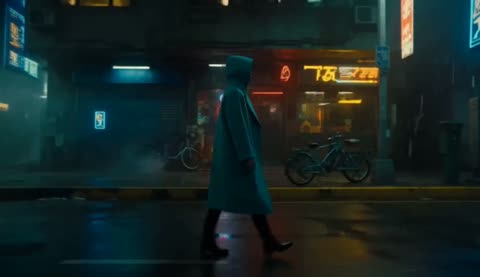
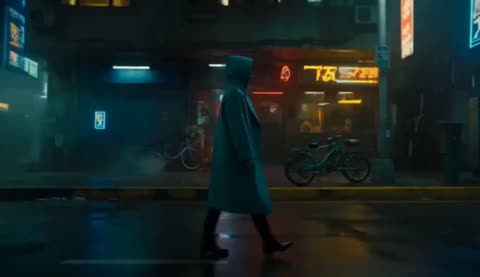
Continue the walk through the cyber street
15/30View prompt
Continue the uploaded cyberpunk street video for five seconds. Let the adult man follow his existing walking direction for several more steps, then ease into a natural pause. Maintain the current camera path, clothing, street layout, and neon lighting relationships. Keep the continuation within the same shot, without new characters, sudden turns, or a different location.
Introduction
Opus 5.5 Video Give the Opus 5.5 Video AI Video Extender a useful next moment
A successful Opus 5.5 Video AI Video Extender task begins with an unfinished visual idea: a subject still walking, a gesture still settling, or a viewpoint worth holding.
Opus 5.5 Video Find the reason to continue
A person walking down a neon-lit street may need a few more steps before the scene feels complete. Give the Opus 5.5 Video AI Video Extender that small destination. Continuing an established event provides a clearer assignment than introducing new characters, dramatic weather, and a sudden location change.
Opus 5.5 Video Start with a supported clip
Upload one MP4 or MOV shorter than thirty seconds. The Opus 5.5 Video AI Video Extender requires that video and a prompt. Choose a source whose ending makes the next movement understandable without relying on unseen material.
Opus 5.5 Video Plan for five additional seconds
PixVerse Extend v4.5 produces a fixed five-second continuation in this workflow. Use the Opus 5.5 Video AI Video Extender for one action that fits that window. A few steps, a gentle turn, or a settling camera move is a better starting point than a complete new sequence.
How to use
Opus 5.5 Video How to use the Opus 5.5 Video AI Video Extender
- InputReference video 1STEP 1
Opus 5.5 Video Upload your source
Add one MP4 or MOV shorter than thirty seconds to the Opus 5.5 Video AI Video Extender, choosing a clip with a readable ending.
- ModelPixVerse Extend720p5sPrompt
 OutputSTEP 2
Opus 5.5 Video Describe what follows
Give the Opus 5.5 Video AI Video Extender one next action and a compatible camera direction, keeping the existing subject and setting central.
- First frameLast frame
 0.0s
0.0s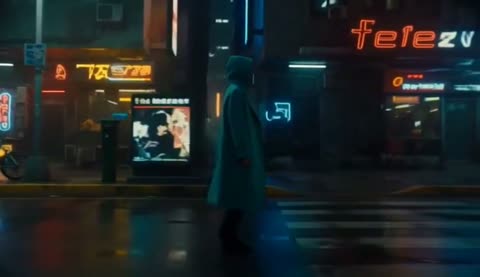 5.0s
5.0s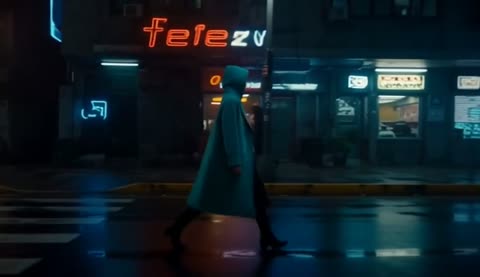 8.9sOriginal 5.2sExtension +4.7sSTEP 3
Opus 5.5 Video Check and extend
Choose your Opus 5.5 Video AI Video Extender resolution, starting at 720p, review the Create quote, and generate the fixed five-second continuation.
- STEP 4
Opus 5.5 Video Review the transition
Compare the Opus 5.5 Video AI Video Extender beginning with your source ending, then inspect the full continuation before selecting the version to download.
Features
Opus 5.5 Video Prepare the source ending for the Opus 5.5 Video AI Video Extender
Watch the last moments before uploading. The Opus 5.5 Video AI Video Extender needs a useful point of departure, not simply whichever file happens to be easiest to find.
Opus 5.5 Video Keep the subject readable
Choose an ending where the main subject remains visible and its direction is clear. A person disappearing behind a large object leaves more uncertainty. Give the Opus 5.5 Video AI Video Extender a source that shows the clothing, posture, and surroundings you want the continuation to carry forward.
- Preview the last few seconds, not only the opening thumbnail.
- Check the Opus 5.5 Video AI Video Extender source for cuts immediately before the ending.
Opus 5.5 Video Avoid a new shot at the boundary
If your file finishes just after a scene cut, the visible ending may not represent the movement you intended to continue. Prepare a suitable short segment in your own editor before using the Opus 5.5 Video AI Video Extender. Keep the upload centered on one coherent shot.
Opus 5.5 Video Notice motion already underway
Look at walking direction, camera drift, moving foliage, and light changes near the endpoint. These observations become useful Opus 5.5 Video AI Video Extender instructions. Continuing a slow movement generally needs less explanation than reversing its direction or asking a moving camera to stop abruptly.

Opus 5.5 Video Write an Opus 5.5 Video AI Video Extender prompt that follows the action
Describe what happens next rather than redescribing every visible detail. The Opus 5.5 Video AI Video Extender already receives the source; your words should clarify its continuation.
Opus 5.5 Video Give the subject a nearby destination
Ask the walking person to take several more steps along the same pavement and slow near the existing doorway. This gives the Opus 5.5 Video AI Video Extender a concrete progression. Keep the destination visible or spatially plausible instead of introducing an elaborate place beyond the frame.
- Choose one primary action with a clear direction and stopping point.
- Keep Opus 5.5 Video AI Video Extender movement consistent with the source’s final posture.
Opus 5.5 Video Name what should remain steady
Describe the intended continuity of clothing, objects, and surroundings without turning the prompt into an inventory. Tell the Opus 5.5 Video AI Video Extender that the person stays in the same outfit and follows the existing route. Inspect the result because these instructions do not lock every detail.
Opus 5.5 Video Finish rather than multiply events
A small pause after the action can make the continuation easier to use. Ask the Opus 5.5 Video AI Video Extender for a relaxed finish once the subject reaches its destination. Avoid adding a conversation, a new arrival, and another camera move merely to fill the available seconds.

Opus 5.5 Video Keep Opus 5.5 Video AI Video Extender camera movement coherent
The scene needs spatial continuity as well as a recognizable subject. Give the Opus 5.5 Video AI Video Extender camera direction that agrees with the final view of your source.
Opus 5.5 Video Follow the established viewpoint
If the camera already follows behind the subject, continue at a similar distance rather than suddenly requesting a frontal close-up. The Opus 5.5 Video AI Video Extender brief should explain the next camera movement. This helps you judge whether the extension belongs with the original shot.
- Use the source horizon and viewing height as comparison points.
- Watch Opus 5.5 Video AI Video Extender perspective where the continuation reveals new scenery.
Opus 5.5 Video Keep movement within available space
A narrow pavement calls for a different movement from an open courtyard. Direct the Opus 5.5 Video AI Video Extender around the actual route shown in your clip. Check that feet meet the ground and that foreground objects do not pass through the person as the scene develops.
Opus 5.5 Video Carry lighting into the new interval
If a warm shop window illuminates one side of a coat, that relationship should evolve plausibly as the person passes. Use the Opus 5.5 Video AI Video Extender to request consistent atmosphere, then inspect reflections and shadows. Dramatic changes can make the joining point feel like another scene.
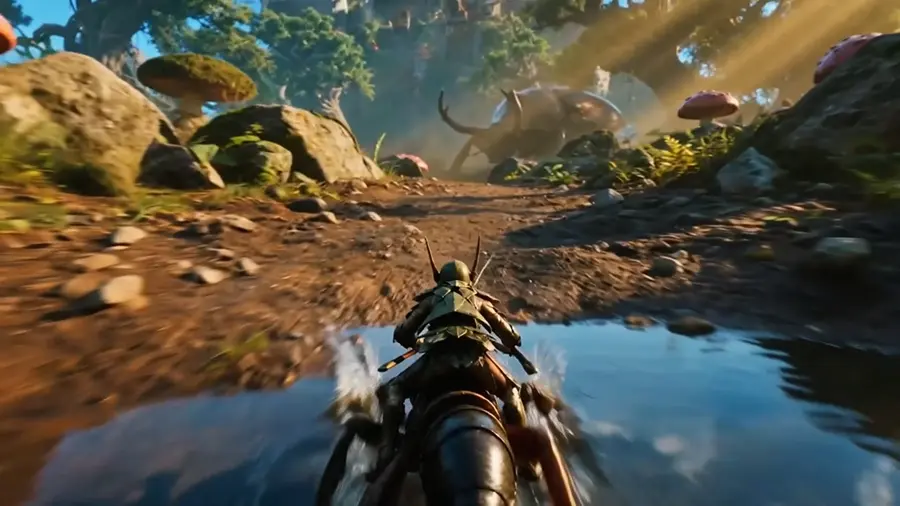
Opus 5.5 Video Select an Opus 5.5 Video AI Video Extender output for your project
Choose the output setting around the next use of the clip. The Opus 5.5 Video AI Video Extender offers resolution choices, not an unlimited duration control.
Opus 5.5 Video Begin with the default resolution
The Opus 5.5 Video AI Video Extender starts at 720p, with 360p, 540p, and 1080p also available. Choose the setting that suits your review or destination. A larger output does not by itself establish better continuity, so assess the generated action before committing to a final selection.
Opus 5.5 Video Review the current quote
Check the Create quote after selecting your source and resolution. The Opus 5.5 Video AI Video Extender should be evaluated with the actual configuration shown, rather than a price remembered from a previous task. Keep the request focused so another iteration addresses a specific creative issue.
Opus 5.5 Video Keep source and continuation identifiable
Save the original clip and approved continuation with clear names. When using the Opus 5.5 Video AI Video Extender in a longer edit, inspect how the returned file fits your sequence instead of assuming it preserves the source unchanged.
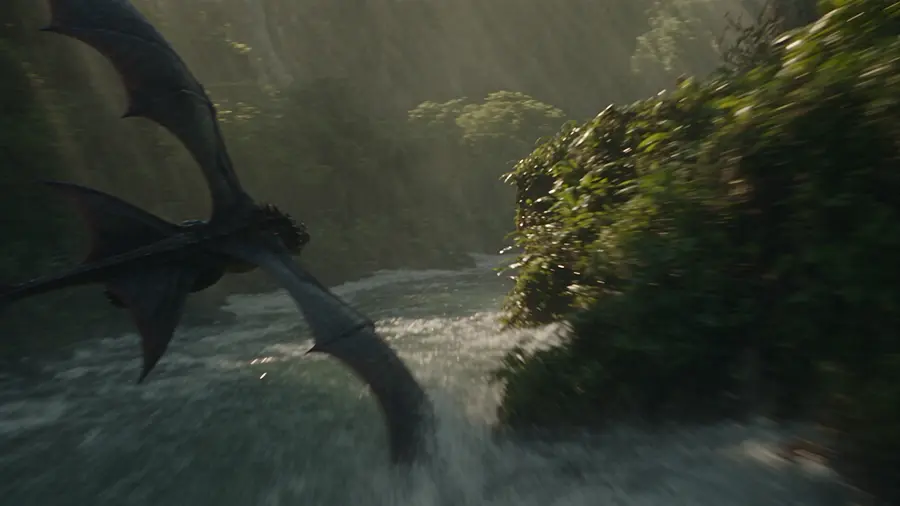
Opus 5.5 Video Review Opus 5.5 Video AI Video Extender continuity at the boundary
The transition is the most revealing part of an Opus 5.5 Video AI Video Extender result. Compare the source ending with the generated beginning before judging the new footage alone.
Opus 5.5 Video Look for a visual jump
Compare posture, camera distance, exposure, and nearby objects across the joining point. An Opus 5.5 Video AI Video Extender clip may look attractive alone but still jump at the boundary. Watch the transition normally before examining paused views.
Opus 5.5 Video Follow details through the action
Inspect hands, clothing edges, signs, and objects that become partly hidden during movement. The Opus 5.5 Video AI Video Extender may reinterpret details as the scene continues. Pay particular attention when the subject emerges from behind something, since that return can expose changes missed in the opening.
Opus 5.5 Video Revise the weakest instruction
Keep the successful direction and clarify one weak instruction, such as the final pause. Compare Opus 5.5 Video AI Video Extender revisions against the same source. Choose the continuation that supports your edit, not merely the busiest result.

Example prompts
Opus 5.5 Video Continue the existing street walk
Continue the uploaded shot for five seconds. The adult already walking along the cyberpunk street takes several more natural steps in the same direction, then slows slightly. Maintain the established camera distance, neon reflections, clothing, and street layout as closely as possible. Keep one continuous shot without introducing new people or sudden cuts.
Opus 5.5 Video Let the existing movement settle
Extend the uploaded video by following the subject’s current motion for five more seconds. Keep the same setting and camera path, let the action finish naturally, then hold a brief quiet moment. Aim to retain visible clothing, object shapes, and lighting relationships. Do not begin a new scene or add an unrelated event.
User reviews
H3Max video creator feedback.
H3Max creator reviews

I made a full character PV for my game with MiniMax H3 in one afternoon. The menu UI stayed readable in every frame and the character never went off-model. That used to cost me a contractor and three weeks.

We tested every AI video generator on the market for stylized work. H3 is the only one that held our anime style across cuts. We now use it for pitch reels and animatics on every project.

I uploaded four product photos and got a listing video with music and a voiceover the same day. My click-through rate on the new listings is up 38%. H3 even got the label text on my packaging right.

I ship five vertical videos a week for three brands. MiniMax H3 gets me from brief to draft in under an hour, with sound already synced. My old workflow needed a videographer and two review rounds.

The editing side is what sold me. A client wanted the background of an interview changed — I typed one sentence into MiniMax H3 and the lighting on the subject matched the new scene automatically.

I previsualized my entire short film in MiniMax H3 before we shot a single frame. Rack focus, match cuts, even the title cards — it understands director language, not just keywords.
Opus 5.5 Video Pricing and Credit Plans
Cancel anytime
Lite
50% off0.025 / credit
Billed $ yearly179· Save $179.8
Video Models


Image Models



- Includes MiniMax H3 and all premium models
- Up to 1 batch generation task
- Standard generation speed
- Standard generation success rate
- Standard customer support
- Commercial Use License
Standard
50% off0.017 / credit
Billed $ yearly299· Save $299.8
Video Models
Image Models
- Includes MiniMax H3 and all premium models
- Up to 4 batch generation tasks
- Priority processing speed
- High generation success rate
- Priority customer support
- Commercial Use License
Pro
50% off0.014 / credit
Billed $ yearly599· Save $599.8
Video Models
Image Models
- Includes MiniMax H3 and all premium models
- Up to 10 batch generation tasks
- Fastest generation speed
- High generation success rate
- Dedicated account manager
- Commercial Use License
Max
50% off0.012 / credit
Billed $ yearly1,199· Save $1,199.8
Video Models
Image Models
- Includes MiniMax H3 and all premium models
- Up to 10 batch generation tasks
- Fastest generation speed
- High generation success rate
- Dedicated account manager
- Commercial Use License
Pay safely and securely with























FAQ
Frequently asked questions
How much time does the Opus 5.5 Video AI Video Extender add?
This workflow generates a fixed five-second continuation. Plan a single action for that interval. It is not an unlimited length setting, and a longer story should be assembled from selected material in your separate editing workflow.
What can I upload to the Opus 5.5 Video AI Video Extender?
Use one MP4 or MOV file shorter than thirty seconds. Choose a coherent shot with a clear ending. A file containing several unrelated scenes can make the intended point of continuation harder to communicate.
Does the Opus 5.5 Video AI Video Extender need a written prompt?
Yes. Describe the action that should follow the source, along with any useful camera direction. Refer to visible subjects and surroundings rather than requesting a different story that ignores the final moments of the uploaded video.
Which resolutions does the Opus 5.5 Video AI Video Extender offer?
The starting setting is 720p. You can also choose 360p, 540p, or 1080p. Review the current Create quote before submitting and judge the resulting continuity separately from the nominal output resolution.
Will the Opus 5.5 Video AI Video Extender preserve every detail?
No exact continuity is guaranteed. Compare posture, clothing, geometry, and lighting at the joining point and through the generated segment. Keep the source available so a plausible-looking continuation is not mistaken for an unchanged recording.
CTA
Opus 5.5 Video Give the Opus 5.5 Video AI Video Extender a natural next beat
Choose a source with a clear ending, describe one reachable action, and review the current quote. Compare the continuation with your original before deciding how it belongs in the final edit.
Continue your short scene