Opus 5.5 Video Hailuo 02 Standard for Scenes with Room to Develop
Explore how an idea unfolds with Opus 5.5 Video Hailuo 02 Standard on H3 Max. Choose six or ten seconds at 768p, begin with text or an image, and optionally supply the final view. Opus 5.5 Video Hailuo 02 Standard gives you a practical framework for testing the pace and visual connection of a short scene.
Video workspace
Crayon Picture Book — The Moon Can't Sleep
1/94View prompt
Create a 20-second original animation inspired by Crayon Picture Book. The moon can't sleep, so a little girl climbs onto the roof to sing it a lullaby. A picture-book page drawn live in wax crayon on toothy paper, with a watercolour wash that reveals what the crayon was hiding. References (grammar only): Raymond Briggs' *The Snowman* (1982) (hand-textured frames that breathe, wordless tenderness, a lyrical passage carried by one tune, still backgrounds with living figures). Copy none of its characters, song or imagery, and never name it in the film. Use an original story, clear compositions and deliberate transitions. Silent animation.
Introduction
Opus 5.5 Video What Is Opus 5.5 Video Hailuo 02 Standard?
Opus 5.5 Video Hailuo 02 Standard is the Standard variant of MiniMax Hailuo 02, offered on fal through text and image generation endpoints.
Opus 5.5 Video Text scenes and image-led transitions
The fal documentation provides Opus 5.5 Video Hailuo 02 Standard routes for generating video from a prompt or animating an opening picture. The image route also includes an optional last-frame input. This makes Opus 5.5 Video Hailuo 02 Standard relevant to both open-ended scene development and transitions with a supplied destination. The images define visual reference points; the model generates the moving connection instead of simply joining two still files.
Opus 5.5 Video A choice of two durations on H3 Max
Opus 5.5 Video Hailuo 02 Standard runs at 768p in this workspace, with six-second and ten-second choices for text and image modes. Use the shorter setting for a compact beat or the longer setting when an action needs more breathing room. Confirm that choice in the controls before generating. There is no audio switch here, so a soundtrack should be planned separately from the visual request.
How to use
Opus 5.5 Video How to Use Opus 5.5 Video Hailuo 02 Standard
- PromptSTEP 1
Opus 5.5 Video Define the shot you need
Select Opus 5.5 Video Hailuo 02 Standard in H3 Max. Decide whether the scene will establish a place, show a small action, or connect two visual compositions.
- ModelHailuo 02 Standard768p16:910sPromptSTEP 2
Opus 5.5 Video Choose text or supplied frames
Write a scene from scratch in text mode, or give Opus 5.5 Video Hailuo 02 Standard an opening image. Add a closing image when a specific destination supports the idea.
- First frameLast frame
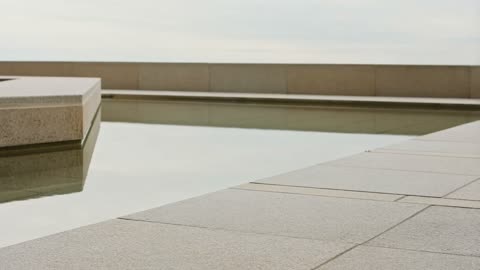 0.0s
0.0s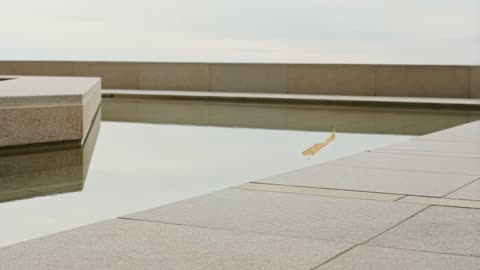 5.1s
5.1s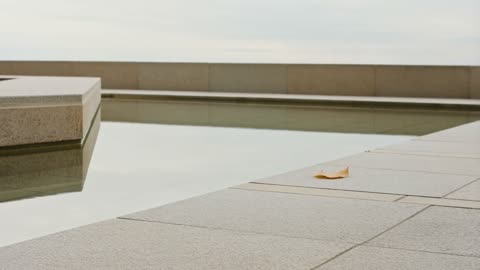 9.1sSTEP 3
Opus 5.5 Video Set the pace before generating
Choose six or ten seconds at 768p. Check the frame inputs, describe the intended motion, and review the credits displayed for the configured request.
- Create one ten-second shot of a quiet courtyard with a shallow reflecting pool and a pale stone bench. A single yellow leaf drifts across the foreground and settles near the pool. Keep the camera fixed, architecture stable, and other movement minimal. Gentle overcast light, no people, readable lettering, new objects, or scene cuts.DownloadSTEP 4
Opus 5.5 Video Judge the result in sequence
Watch the Opus 5.5 Video Hailuo 02 Standard clip from beginning to end. Check the central action and final hold, then decide whether a focused revision would improve its place in your edit.
Features
Opus 5.5 Video Explore Pacing with Opus 5.5 Video Hailuo 02 Standard
The two duration choices in Opus 5.5 Video Hailuo 02 Standard help you decide how long a viewer needs to understand the main change.
Opus 5.5 Video Use six seconds for a direct visual statement
A brief opening view, one action, and a settled result can form a useful six-second shot. Give Opus 5.5 Video Hailuo 02 Standard an event that reads immediately, such as a lamp illuminating a desk or a curtain revealing a window. Resist adding a second scene. Opus 5.5 Video Hailuo 02 Standard becomes easier to evaluate when the brief identifies the particular moment the audience should notice.
Opus 5.5 Video Use ten seconds for a gradual development
A longer option can accommodate an approach, a measured reveal, or a subject moving through a small part of the setting. Ask Opus 5.5 Video Hailuo 02 Standard to develop that same event rather than fill the extra time with unrelated activity. Specify the intended pace and a stopping point. The duration control sets the clip length; descriptive timing in the prompt expresses how you want it used.
Opus 5.5 Video Connect Two Views with Opus 5.5 Video Hailuo 02 Standard
Optional closing imagery gives Opus 5.5 Video Hailuo 02 Standard a destination for transitions that need a recognizable opening and a purposeful finish.
Opus 5.5 Video Find a relationship between the images
Consider what physically or visually connects your two frames before submitting them. Opus 5.5 Video Hailuo 02 Standard might be directed from an open room view toward a detail already visible within it. Keep the subject, lighting, and scale relationship understandable. A Opus 5.5 Video Hailuo 02 Standard request should explain the journey, not rely on the model to infer why two very different pictures belong together.
Opus 5.5 Video Make the transition serve an edit
A destination can be useful when a shot must lead attention toward a place where the next sequence begins. Plan Opus 5.5 Video Hailuo 02 Standard around that handoff, leaving a readable final composition. Exact matching is not guaranteed, so inspect the ending and the preceding motion together. Avoid accepting a result whose last frame works but whose middle introduces distracting objects or changes the setting.
Opus 5.5 Video Give Opus 5.5 Video Hailuo 02 Standard a Clear Motion Hierarchy
An environmental shot can have several moving elements, but Opus 5.5 Video Hailuo 02 Standard benefits from a clear distinction between primary and background activity.
Opus 5.5 Video Choose one movement to carry the scene
A leaf drifting across a courtyard can be the central event while everything else remains restrained. Tell Opus 5.5 Video Hailuo 02 Standard which element leads the viewer through the frame. Background activity should not compete with it. In a Opus 5.5 Video Hailuo 02 Standard brief, describe subtle cloud movement or fabric movement as supporting details only when they reinforce the main visual idea you want to explore.
Opus 5.5 Video Keep the setting legible across time
Stationary architecture, furniture, and landscape features provide reference points for reading motion. Ask Opus 5.5 Video Hailuo 02 Standard to keep those elements stable as the main event develops. Review doorways, horizon lines, and the contact between objects and the ground. A moving scene should still feel spatially understandable; additional activity is not useful when the viewer loses track of where the action is happening.
Opus 5.5 Video Compose Readable 768p Shots with Opus 5.5 Video Hailuo 02 Standard
Plan Opus 5.5 Video Hailuo 02 Standard around strong subject placement and clear shapes rather than relying on tiny details to carry the entire message.
Opus 5.5 Video Use framing to establish visual priorities
Place the important subject where its action can be seen without searching through the background. Opus 5.5 Video Hailuo 02 Standard can be prompted toward a close view for a small gesture or a wider view for movement through space. Explain which priority matters. For Opus 5.5 Video Hailuo 02 Standard image requests, start with a picture that already supports that emphasis rather than hoping motion will fix an unclear composition.
Opus 5.5 Video Evaluate the size in its real destination
Check a Opus 5.5 Video Hailuo 02 Standard clip inside the intended placement, whether that is a compact web panel or part of an edited sequence. Look for readable silhouettes, stable edges, and enough separation between the subject and its surroundings. Do not assume enlarging a finished clip will recover detail that was not resolved. Select a composition whose important information survives at the delivered size.
Opus 5.5 Video Develop Useful Shot Options with Opus 5.5 Video Hailuo 02 Standard
Treat each Opus 5.5 Video Hailuo 02 Standard request as a specific contribution to your sequence, with a defined entrance, main event, and exit.
Opus 5.5 Video Compare timing while keeping the idea recognizable
Write down whether a version is meant to feel immediate or contemplative before generating it. Opus 5.5 Video Hailuo 02 Standard offers two clip lengths, but changing the duration does not guarantee the same action simply plays more slowly. Compare the actual performances. Keep the Opus 5.5 Video Hailuo 02 Standard subject and setting consistent in your brief so you can identify which pacing choice serves the scene.
Opus 5.5 Video Keep only material that helps the larger story
A Opus 5.5 Video Hailuo 02 Standard shot does not need to tell the entire story by itself. It might establish a location, introduce an object, or create a pause between larger moments. Save the useful part of the idea and note what needs revision. Review the displayed credits before another Opus 5.5 Video Hailuo 02 Standard request, especially after changing the duration or replacing either supplied frame.
Example prompts
Opus 5.5 Video Text: a ten-second courtyard moment
Create one ten-second shot of a quiet courtyard with a shallow reflecting pool and a pale stone bench. A single yellow leaf drifts across the foreground and settles near the pool. Keep the camera fixed, architecture stable, and other movement minimal. Gentle overcast light, no people, readable lettering, new objects, or scene cuts.
Opus 5.5 Video Image: a six-second reveal
Use the uploaded opening image as the starting scene. Over six seconds, let the visible curtain move gently aside, revealing more of the existing window. Keep furniture, wall proportions, lighting, and the camera position consistent. Let the motion settle before the end. Do not introduce people, change the room, or add text.
Opus 5.5 Video Two frames: a ten-second approach
Use the supplied opening and ending frames to guide a continuous ten-second move from the wider view toward the final detail. Keep the shared subject recognizable and the setting coherent. Move gradually, without sudden acceleration, and finish with a short hold. Avoid object duplication, scene cuts, new decoration, or changes to the subject design.
User reviews
H3Max video creator feedback.
H3Max creator reviews

I made a full character PV for my game with MiniMax H3 in one afternoon. The menu UI stayed readable in every frame and the character never went off-model. That used to cost me a contractor and three weeks.

We tested every AI video generator on the market for stylized work. H3 is the only one that held our anime style across cuts. We now use it for pitch reels and animatics on every project.

I uploaded four product photos and got a listing video with music and a voiceover the same day. My click-through rate on the new listings is up 38%. H3 even got the label text on my packaging right.

I ship five vertical videos a week for three brands. MiniMax H3 gets me from brief to draft in under an hour, with sound already synced. My old workflow needed a videographer and two review rounds.

The editing side is what sold me. A client wanted the background of an interview changed — I typed one sentence into MiniMax H3 and the lighting on the subject matched the new scene automatically.

I previsualized my entire short film in MiniMax H3 before we shot a single frame. Rack focus, match cuts, even the title cards — it understands director language, not just keywords.
Opus 5.5 Video Pricing and Credit Plans
Cancel anytime
Lite
50% off0.025 / credit
Billed $ yearly179· Save $179.8
Video Models


Image Models



- Includes MiniMax H3 and all premium models
- Up to 1 batch generation task
- Standard generation speed
- Standard generation success rate
- Standard customer support
- Commercial Use License
Standard
50% off0.017 / credit
Billed $ yearly299· Save $299.8
Video Models
Image Models
- Includes MiniMax H3 and all premium models
- Up to 4 batch generation tasks
- Priority processing speed
- High generation success rate
- Priority customer support
- Commercial Use License
Pro
50% off0.014 / credit
Billed $ yearly599· Save $599.8
Video Models
Image Models
- Includes MiniMax H3 and all premium models
- Up to 10 batch generation tasks
- Fastest generation speed
- High generation success rate
- Dedicated account manager
- Commercial Use License
Max
50% off0.012 / credit
Billed $ yearly1,199· Save $1,199.8
Video Models
Image Models
- Includes MiniMax H3 and all premium models
- Up to 10 batch generation tasks
- Fastest generation speed
- High generation success rate
- Dedicated account manager
- Commercial Use License
Pay safely and securely with























FAQ
Frequently asked questions
Which lengths can I choose with Opus 5.5 Video Hailuo 02 Standard?
H3 Max offers six-second and ten-second clips for this model. Select the duration in the workspace first, then describe the pace and action that should occupy it. The two choices are discrete settings.
Does Opus 5.5 Video Hailuo 02 Standard use 768p on H3 Max?
Yes. This page uses the 768p configuration. Compose for that output size and inspect fine details in the finished clip. Do not assume that settings described for a different tier apply to this one.
Can Opus 5.5 Video Hailuo 02 Standard start without an uploaded picture?
Yes. Text mode generates a scene from your written description. Include the subject, surroundings, action, and camera behavior. Use image mode when a specific opening composition is more important than inventing the entire setting.
How many frames can guide Opus 5.5 Video Hailuo 02 Standard image mode?
You can provide an opening picture and an optional ending picture. They are visual endpoints, not a general collection of subject references. Choose them to describe an understandable transition within the selected clip length.
Can I request a soundtrack in Opus 5.5 Video Hailuo 02 Standard?
This workspace has no audio switch for the model and does not promise native sound generation. Plan the visual sequence here, then arrange any required soundtrack separately rather than relying on a sound description.
Will ten seconds make Opus 5.5 Video Hailuo 02 Standard more accurate?
A longer clip gives the action more time, not a guarantee of greater accuracy. Use it when pacing requires it. Review subject consistency and the full transition at either duration before selecting a result.
How should I budget Opus 5.5 Video Hailuo 02 Standard revisions?
Check the credits shown for each configured request. Decide what the next variation is meant to improve before submitting it, and review the amount again after changing duration or other supported settings.
CTA
Opus 5.5 Video Find the Right Pace with Opus 5.5 Video Hailuo 02 Standard
Start with a scene that has somewhere to go. Choose the duration, prepare any endpoint images, and use Opus 5.5 Video Hailuo 02 Standard to explore a clear visual connection after reviewing the workspace credits.
Plan a Video Shot