Lite
50%折扣0.025/积分
$29.9$14.950%折扣
每年计费$179· 节省$179.8
600/月
视频模型
MiniMaxSeedanceWanGrok ImagineKling


图像模型
SeedreamGPT ImageNano Banana



- 包含 MiniMax H3 及所有高级模型
- 最多1个批量生成任务
- 标准生成速度
- 标准生成成功率
- 标准客户支持
- 商业使用许可
年度计费 Opus 5.5 Video 年度计划总价约比连续月付 低 50%
Opus 5.5 Video turns a written brief into a reviewable animation. Explore attributed films, adapt a prompt and create your own moving story.
Images are placed as graphic elements, not animated first frames. Other model drafts are kept.
示例
1 / 94Opus 5.5 Video brings code-directed animation into a browser workspace. Describe a subject, a visual style and a short sequence, then review the animation before exporting. The source collection connects real creator previews with practical prompts, so you can study the relationship between a written brief and the finished scene.
Opus 5.5 Video draws editorial inspiration from Lemo Opuscar, Opus Video Recipes, Opus JS Animations and Opus Video Skills. These projects demonstrate painted worlds, kinetic typography, procedural motion and careful production planning. Their attributed examples are references for your own ideas.
Opus 5.5 Video includes a bounded animation workflow alongside separate image and video tools. The animation engine interprets structured scene data and exports supported compositions; other models have their own input and output limits.
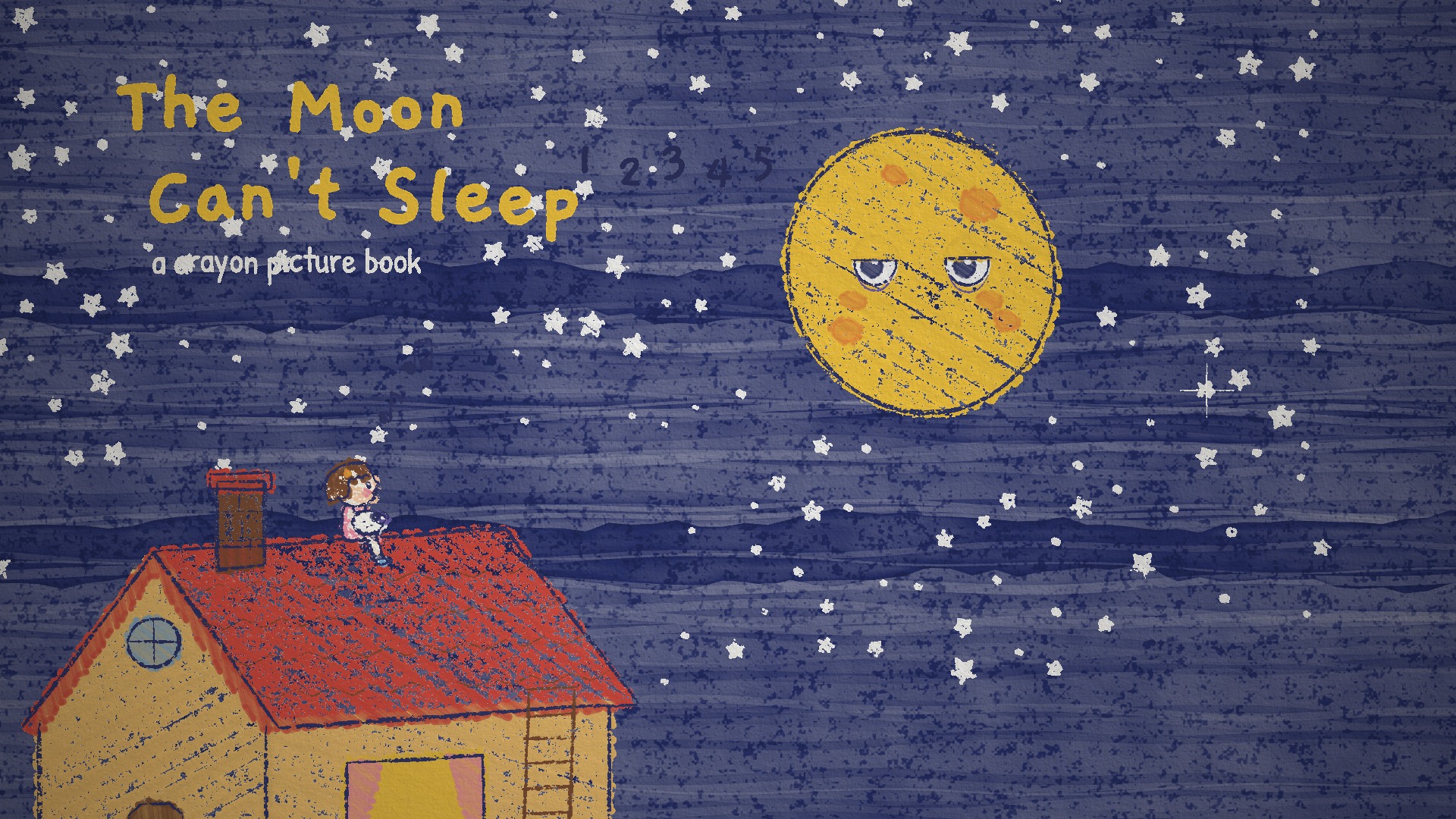
Crayon Picture Book — The Moon Can't Sleep
lemomo-ai · Source and promptUse This PromptBrowse the Opus 5.5 Video source collection and select a visual direction. Inspect the credited repository, poster and prompt together. Decide which part you want to adapt: the palette, the rhythm, the typography or the scene structure. Start with an example whose complexity fits your intended result.

Use Opus 5.5 Video to describe your own subject and sequence. Include a beginning, one main change and an ending. Keep on-screen words short and specify the visual style. Replace source-specific facts and names, then review the selected model, duration and aspect ratio before you submit.
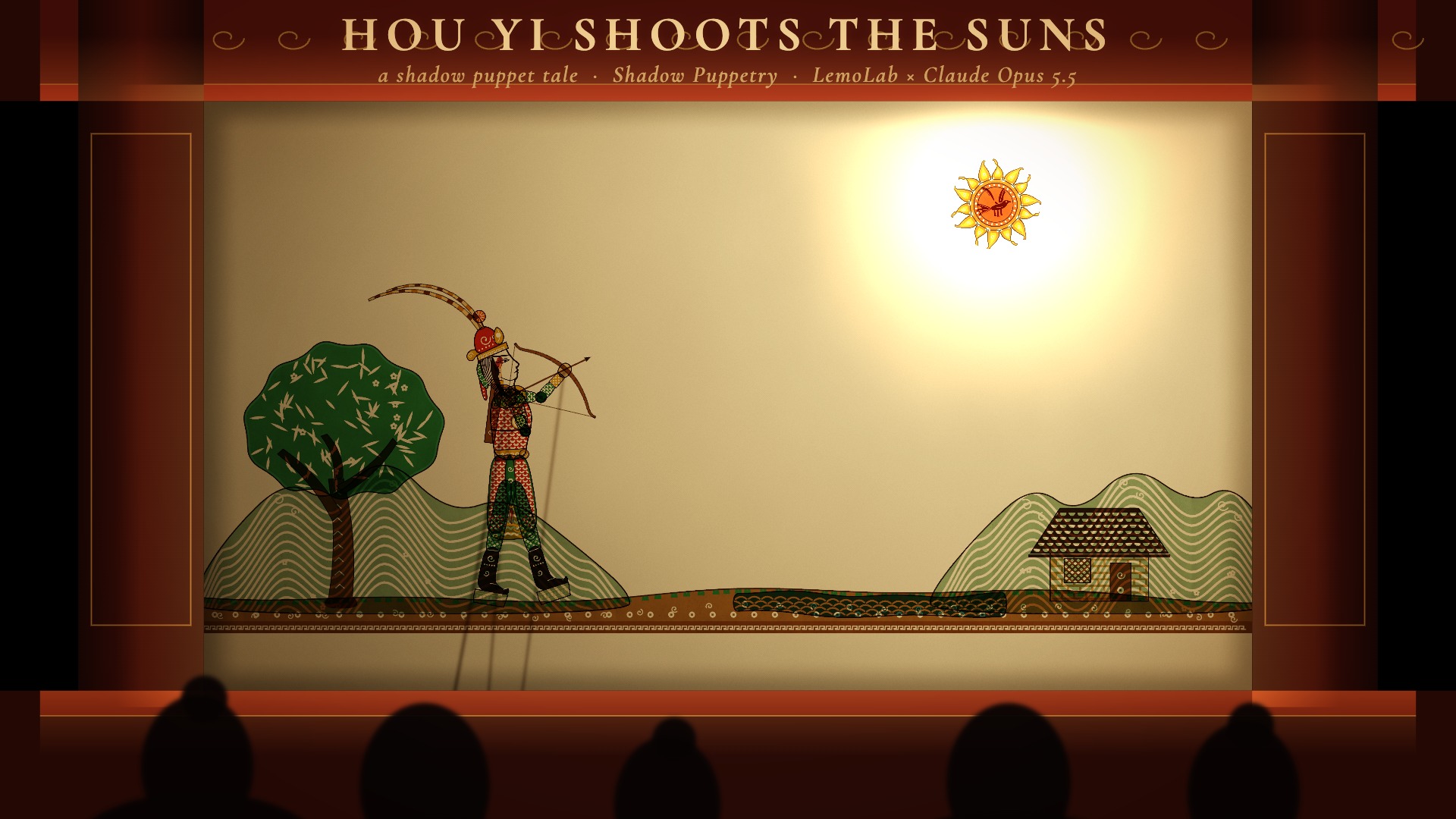
Play the Opus 5.5 Video preview and check that the main idea is clear without explanation. Inspect text placement, contrast and the timing of transitions. Make a focused revision if necessary. Treat the creator reference as inspiration while judging the actual composition produced by the selected engine.
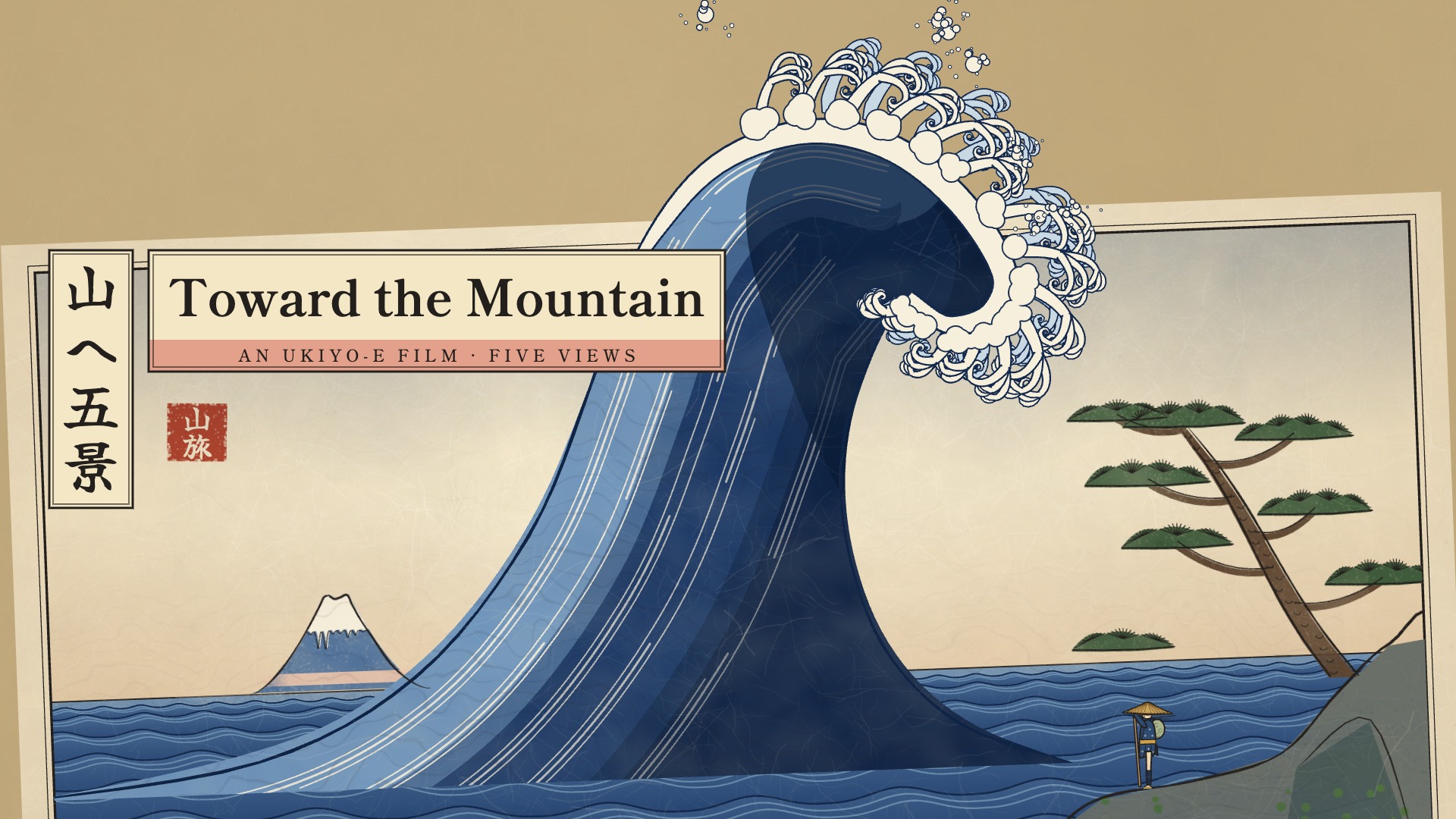
Choose the Opus 5.5 Video version you want to keep and export the supported MP4. Play the exported file, check its opening and closing frames, and confirm that the format fits your publishing destination. Add separately licensed audio in your editing workflow when the selected engine produces silent output.

Opus 5.5 Video examples show how paper color, transparent strokes and restrained palettes can establish a recognizable mood. Lemo Opuscar explores a broad collection of visual languages, while Opus Video Skills documents watercolor character animation. Borrow the principles of layering and composition for an original story.
Opus 5.5 Video prompts work better when the look is specific. Name a background, an accent color, the shape vocabulary and the way elements enter or leave. A paper scene might reveal one layer at a time; a geometric scene might move through repeated circles and blocks.
Opus 5.5 Video keeps creator previews separate from your exported work. Source films may contain rendering techniques, original music or detailed scenes outside the built-in engine. Use their prompts as adaptable briefs and review what the current engine produces.
Watercolor Brush — Follow the Rain
lemomo-ai · Source and promptUse This PromptOpus 5.5 Video typography examples connect large lettering with simple timing. Opus Video Recipes demonstrates an explainer built from short factual beats, while the kinetic reel materials organize longer work into chapters. Start with the sentence a viewer must remember. Divide it into a small number of cards and let each card stay visible long enough to read comfortably.
Opus 5.5 Video supports briefs that specify a strong headline, a smaller supporting line and a quiet closing card. Use contrast, scale and spacing to guide attention before adding movement. Keep important text inside the frame and test it on a phone. Shorter phrases usually survive a vertical layout more gracefully than paragraphs compressed into a narrow column.
Opus 5.5 Video examples are useful for product introductions, educational explainers and personal portfolios. Replace source facts, company names and résumé details with information you can support. Keep one visual motif through the sequence, then close with a clear message. The creator attribution explains the reference; your prompt should explain the original story you want to make.
Chinese Ink Wash — The Swordsman and the River
lemomo-ai · Source and promptUse This PromptOpus 5.5 Video accepts a brief that explains what happens first, what changes and how the final frame should settle. The directing approach in Opus JS Animations emphasizes a central image and a scene-by-scene treatment. Apply that thinking to a small composition: establish the subject, introduce one meaningful change and leave time for the viewer to understand the ending.
Opus 5.5 Video prompts can describe slow reveals, short holds and confident transitions without listing every technical parameter. Choose a pace that supports the message. A reflective paper scene needs different timing from a punchy title reel. Review the opening and ending together, then revise the section that feels rushed or visually disconnected from the rest of the piece.
Opus 5.5 Video creator sources describe music, spoken narration and audio-led timing in their original production pipelines. Those upstream features do not automatically become features of the selected website engine. The built-in animation workflow exports silent compositions. If you need synchronized sound, choose a separate model that explicitly supports it or add your licensed soundtrack in your editing workflow.
Impasto Oil Painting — The Colour of Rain
lemomo-ai · Source and promptUse This PromptOpus 5.5 Video links preview media, poster images, prompts, authors and repositories in a single source record. The homepage highlights the new collection first, and the video workspace keeps those examples at the front of its text-to-video library. You can open the source to understand its context before borrowing the composition or adapting the prompt to a different subject.
Opus 5.5 Video provides a Use This Prompt action that fills the matching workspace. It does not submit a paid generation. Read the imported brief, change any source-specific names and review duration, style and available credits. This makes it possible to explore several directions before committing to a draft, while retaining a clear connection to the example that inspired it.
Opus 5.5 Video distinguishes original source instructions from adapted website briefs. A preview demonstrates what its credited author made with an upstream workflow; it is not proof that the website has reproduced the film. Contact sheets remain labeled as storyboard references. This gives you useful examples without confusing still images, source footage and newly generated output.
One-line Drawing — The Line That Never Lifted
lemomo-ai · Source and promptUse This PromptOpus 5.5 Video lets you inspect supported animation projects before exporting an MP4. Look for readable lettering, deliberate transitions and a stable closing frame. Review the result at the size where people will watch it. A quick check of the beginning, middle and end often reveals crowded compositions or timing problems that are easy to fix in the next revision.
Opus 5.5 Video works best with a concrete revision request. Ask for a longer title hold, simpler shapes, more margin or a calmer palette. Keep the part that already works and change one clear aspect at a time. Versioned projects make the selected composition explicit, while export operates on the version you choose instead of silently rewriting the creative brief.
Opus 5.5 Video shows the selected workflow and required credits before submission. Generation and export follow the current engine rules, and third-party models may charge differently. Use material you have permission to publish, retain applicable source notices and inspect the final file yourself. The library offers a starting point; publication decisions still depend on your project and its actual assets.
Whiteboard Explainer — Einstein in Your Pocket
lemomo-ai · Source and promptUse This Prompt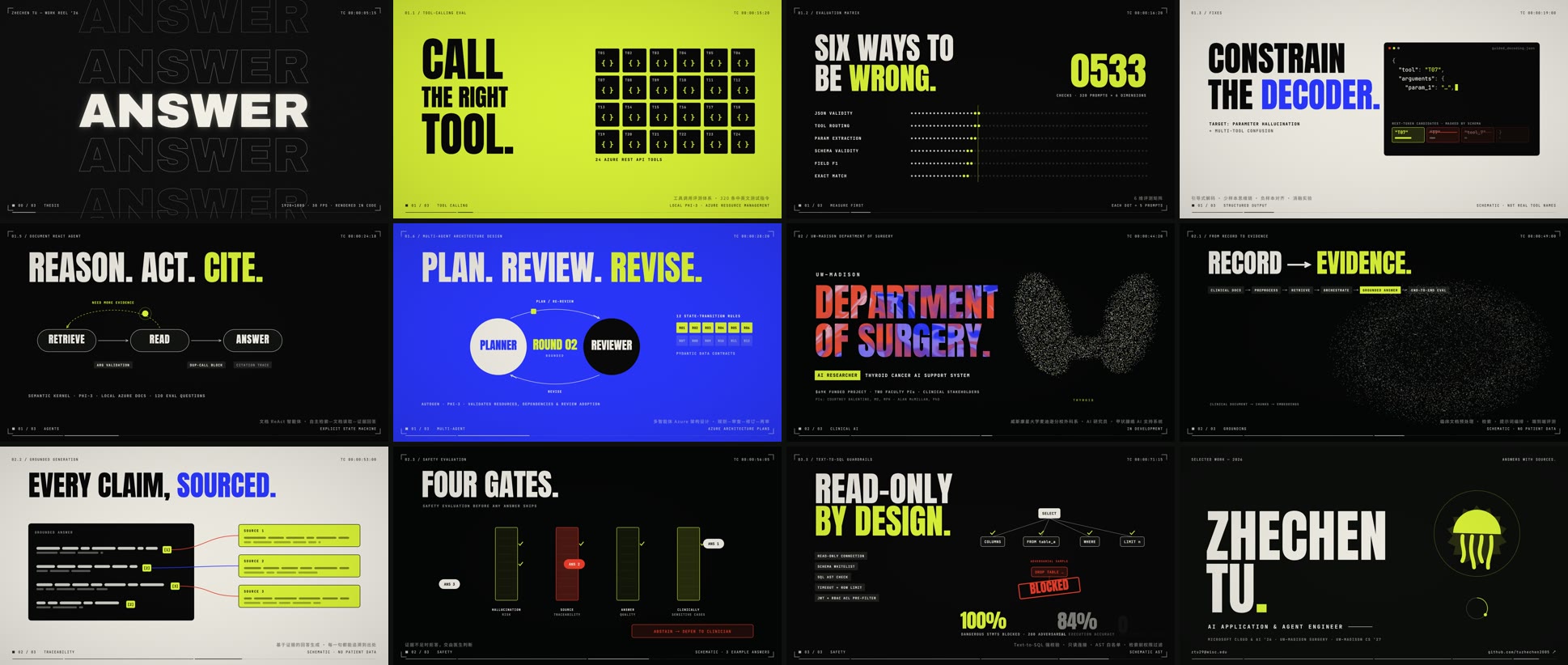
Source contact sheet, with an adapted prompt for your own animation.
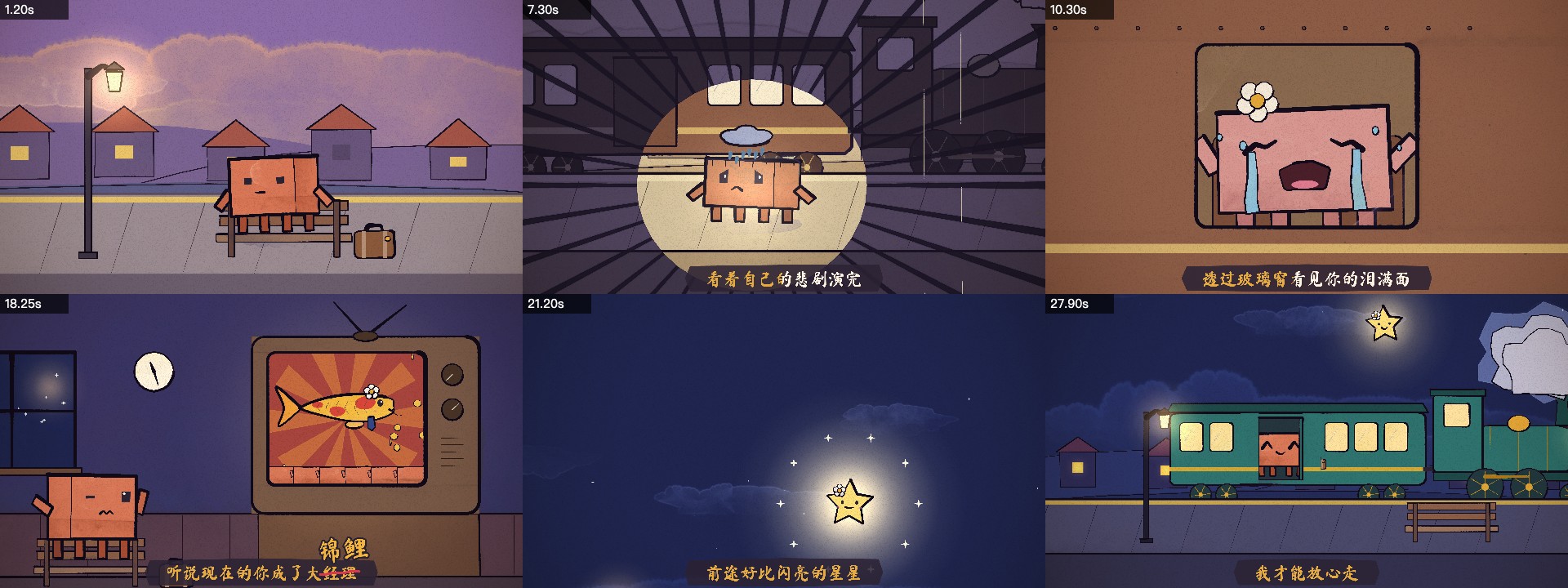
Source contact sheet, with an adapted prompt for your own animation.
随时取消
0.025/积分
每年计费$179· 节省$179.8
0.017/积分
每年计费$299· 节省$299.8
0.014/积分
每年计费$599· 节省$599.8
0.012/积分
每年计费$1,199· 节省$1,199.8























Opus 5.5 Video is an independent creative workspace. Source examples credit their original repositories and authors; service and model names identify the engines or reference workflows involved.
Opus 5.5 Video does not promise a frame-for-frame reproduction. Complex upstream scenes, music and framework-specific effects may need adaptation to the selected engine.
Opus 5.5 Video labels them as creator previews. Your own generated projects and exported files appear separately in your workspace history and assets.
Opus 5.5 Video lets you browse and insert example prompts without submitting a generation. Review the displayed credit requirement before starting work.
Opus 5.5 Video offers several tools with their own engines. Check the selected model and supported inputs; an image editor and a procedural animation workflow solve different tasks.
Choose a reference, describe your own idea and review the result. Start with Opus 5.5 Video and build one clear scene at a time.
Start creating